
- Your e-mail
- Sign up
- Connect
- Start copying
Your access is being prepared. Nothing is needed from you until then: come back to this page later.
Your connection page opens in its own window.
We could not open your access yet. The fault is on our side and we are on it. Nothing is needed from you.
Your request is recorded. We are reviewing your account before a portfolio opens in it. Nothing is needed from you until then: come back to this page later.
On your connection page
Your connection page opens in its own window. Do these steps there, once. This list stays here.
Your connection page is open in its own window.
Your browser blocked the window, so your connection page did not open. .
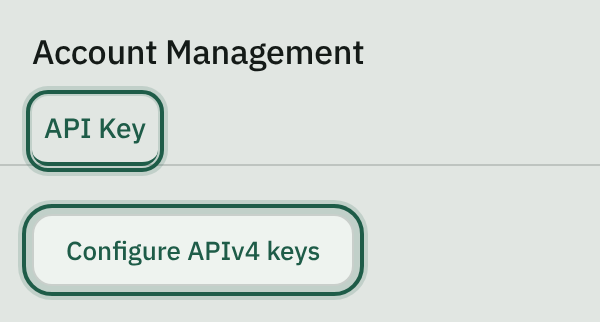
Open the key page. In the window, press what the picture outlines in green. 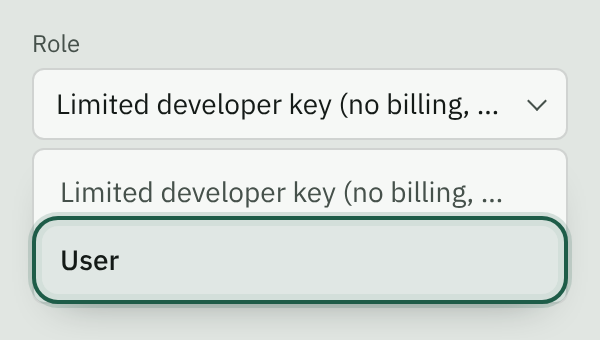
Choose User. The other choice cannot start copying. 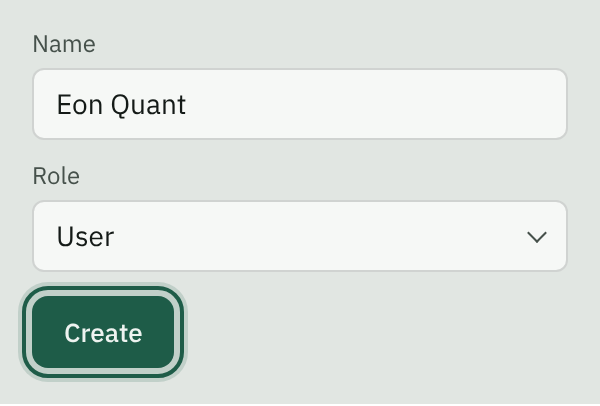
Press Create. Give the key any name you like, then press "Create". 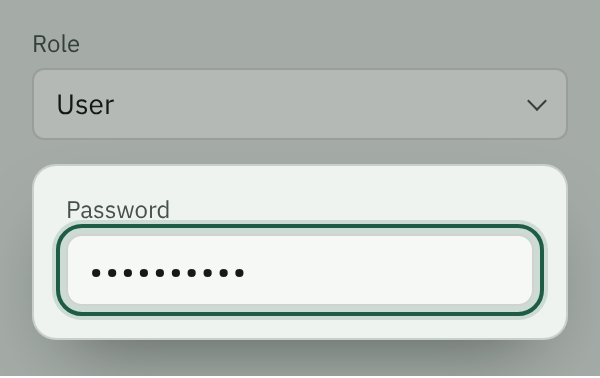
Confirm your password. Enter your Eon Quant password to receive your key. 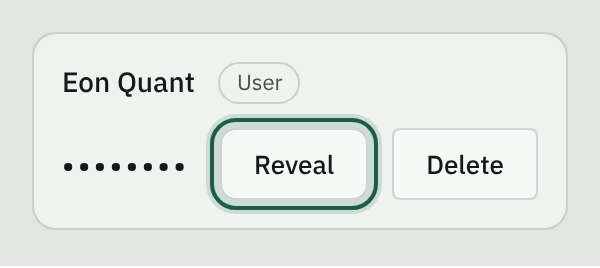
Copy the key. Press "Reveal" to see it, then copy all of it. Then come back to our page and paste it.
Save this key somewhere safe. Every button on your dashboard will ask for it.
Set your dial
dial1.0×
Drag, or pick a setting. The figures below follow the dial.
At 1.0× you trade as $100,000 = 1.00× your $100,000 account
−$12,024
12.0% of your account
deepest historical fall
−$10,160
10.2% of your account
worst month
−$23,987
24.0% of your account
1-in-100 fall, Monte Carlo simulation (10,000 runs)
Copying starts from the model's next new trade. Positions the model already holds are bought only if you chose to join trades in progress. A higher dial is more leverage: losses grow in the same proportion as gains. If you take capital out of the account, lower the dial to match.
Your access is being prepared. Nothing is needed from you until then: come back to this page later.
Paste your key
Your key lets the buttons on your dashboard act, and only when you press one. Guard it like a bank password. You can delete it on your connection page at any time.
Used for this one instruction.
Read what I'm agreeing to
My controls and my key. On my Eon Quant dashboard I send my own instructions with my own connection key: switch copying on or off, switch stay in step on or off, set my dial, and close this portfolio's positions. Each instruction is sent only when I press it, enter my key and confirm, and only as I set it; Eon Quant never sends one by itself and never chooses whether, when or how much. My key is used for that one instruction and then dropped: Eon Quant never keeps it. My instruction goes through the connection page to my broker account; switching copying or stay in step on, setting my dial or closing this portfolio's positions can buy or sell at market at once. Each press is recorded with its time, the words I saw, the last four characters of my key and the answer received. I can always do the same on my connection page.
Sign the agreement in the window
The connection page shows its agreement once more for this portfolio. Sign it there: only you can.
Where to find your broker account number
- The set-up on your connection page asks for your broker account number. In your broker's web portal, the number is on the Home page, in "Your Portfolio". In its desktop trading app, it is in the top right corner of the window.
- Copying works only into an account whose number starts with "U", for example U1234567. An account whose number starts with "F" cannot be copied into.
- If one login holds several accounts, type the number of the one account you connect for copying. Use an account that holds only the Eon Quant copy: Stay in step closes or reduces anything else it finds there. Your other accounts stay yours.
- To go back, press "Change broker" on the account number step. Or close the small window and press "Open the set-up page" again.
Leave
Help
- We never ask for your key by e-mail, chat or phone.
- Don't give other apps or assistants access to your connection.
- On a shared computer, sign out on your connection page too.
- Questions? Write to info@eonquant.com.
- Read the member guide